
Sometimes the best place to find something to read isn’t the best place to actually read it.
You might come across a long article on your laptop in the middle of the workday, save it to Bredbox, and decide to come back to it later. When later arrives, though, maybe you’d rather be sitting somewhere comfortable with your Kindle than staring at the same screen you’ve been using all day.
Now you can send saved articles and recipes from Bredbox directly to your Kindle.
Your library, on the device you want to use
Bredbox has always been built around the idea that where you discover something shouldn’t determine where you have to read it. Your library is yours, and it should fit the way you like to read.
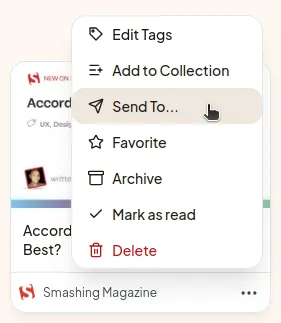
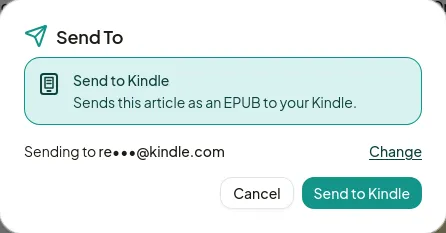
With Send to Kindle, you can open the menu for a saved article or recipe, choose Send To…, and select Send to Kindle. Bredbox creates an EPUB containing the readable version of the content, including available images, and sends it to your Kindle.
The original save stays right where it was in Bredbox. Sending it somewhere else doesn’t archive, delete, or otherwise change it.
Send one article, or make a reading digest
Sometimes you have one article in mind. Other times, you’ve accumulated a handful of things you’d like to settle in and read together.
Bredbox supports both.
When you send a single article or recipe, it arrives as its own EPUB. If you select several articles and recipes at once, Bredbox combines them into a single digest with a table of contents, so you don’t end up with a separate Kindle document for everything in your reading session.
If your selection includes something that can’t be sent to Kindle, Bredbox simply leaves that item out and tells you how many saves will be included before you send the digest.
It’s a small distinction, but an important one: your reading library doesn’t need to dictate how you consume what you’ve collected. Sometimes you want to browse Bredbox. Sometimes you want to read one article on your phone. And sometimes you want to put several good pieces onto an e-reader and disappear from the web for a while.
Setting up your Kindle
Before your first send, you’ll need to tell Bredbox which Kindle email address to use. You can add it in Settings → Email → Kindle, or enter it directly the first time you choose Send to Kindle.
You’ll also need to add:
publish@kindle.bredbox.app
to your approved senders in your Amazon Kindle settings. Amazon uses that list to decide which addresses are allowed to send documents to your Kindle.
Once that’s configured, Bredbox remembers your Kindle address for future sends. You can change or remove it at any time.
Know what happened after you send
Sending something to another service can be frustrating when the result is simply: Well, I hope that worked.
So Bredbox keeps a Kindle delivery history in your Email settings. You’ll be able to see whether a delivery is queued, being prepared, sent, or failed.
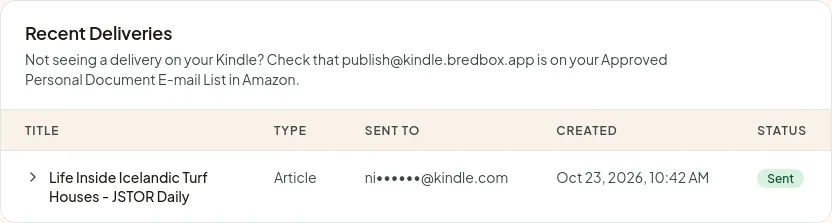
If something does go wrong, Bredbox shows the failure and lets you retry the delivery after you’ve corrected the problem. You won’t need to hunt down and select the same articles all over again.
Save here. Read there.
A personal reading library becomes more useful when it isn’t tied to one interface or one device.
Bredbox can be the place where you collect the things you care about without requiring it to be the place where you consume every one of them. Save something from your browser today. Find it again next week. Read it in Bredbox, on your phone, or send it to the Kindle sitting on your nightstand.
The library stays yours. The reading happens wherever works best for you.